
# Debug Logs Feature – WP AI Blogger Plugin
## Overview
The WP AI Blogger plugin includes a hidden debug logs feature that allows you to view detailed campaign execution logs. This feature is designed primarily for troubleshooting and support purposes and is hidden by default to keep the user interface clean.
## How to Enable Debug Logs
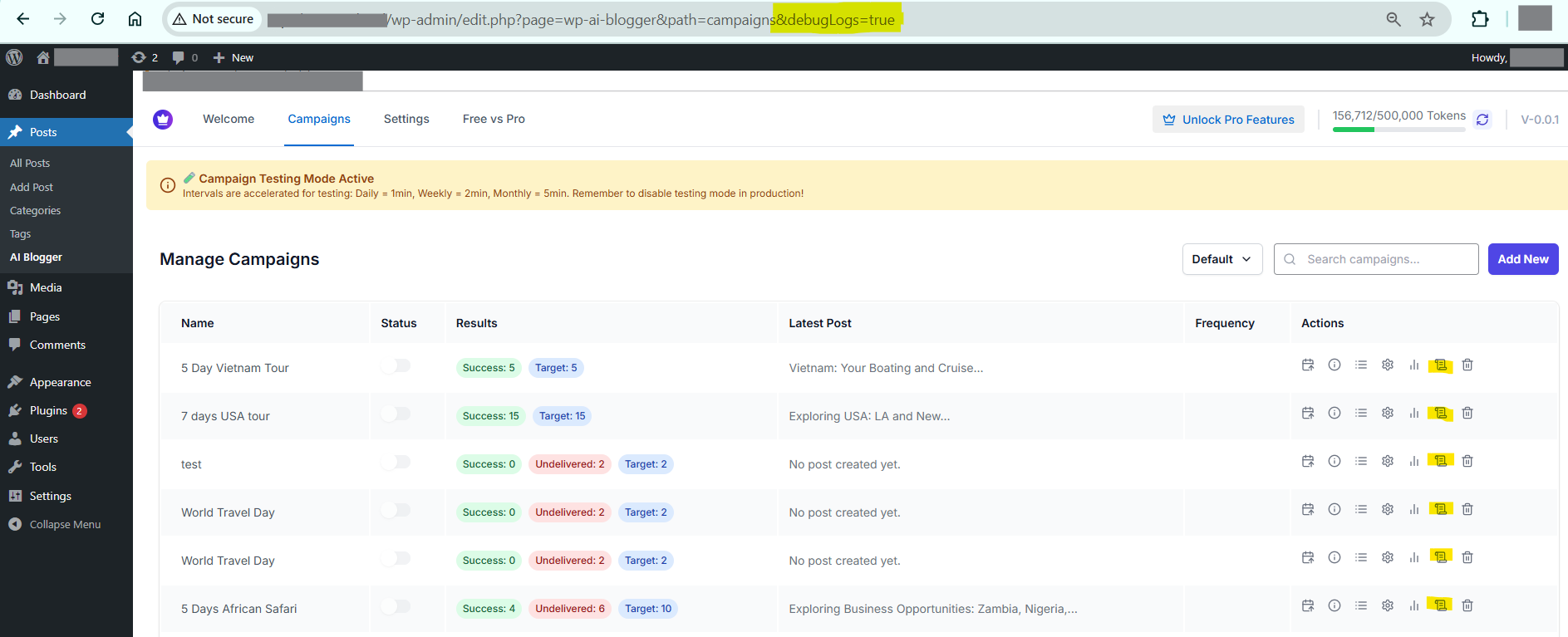
To access the debug logs feature, you need to add a URL parameter to your campaigns page:
### Standard Access
“`
wp-admin/edit.php?page=wp-ai-blogger&path=campaigns&debugLogs=true
“`
### If you’re already on the campaigns page
Simply add `&debugLogs=true` to the end of your current URL.
## What Debug Logs Show
When enabled, debug logs provide detailed information about:
– **Campaign Execution History**: Complete timeline of when campaigns ran
– **Post Generation Attempts**: Success and failure logs for each post creation attempt
– **Error Details**: Specific error messages when post generation fails
– **API Interactions**: Logs of AI service API calls and responses
– **System Events**: Plugin initialization, cron job execution, and other system-level events
– **Performance Metrics**: Execution times and resource usage information
## Using Debug Logs for Troubleshooting
### 1. Accessing Logs
1. Navigate to your campaigns page with the debug parameter: `wp-admin/edit.php?page=wp-ai-blogger&path=campaigns&debugLogs=true`
2. You’ll see a new “View logs” button (scroll icon) in the Actions column for each campaign
3. Click the logs button for the campaign you want to investigate
### 2. Understanding Log Entries
Each log entry typically includes:
– **Timestamp**: When the event occurred
– **Event Type**: Type of operation (e.g., “Post Generation”, “API Call”, “Error”)
– **Campaign ID**: Which campaign the log relates to
– **Details**: Specific information about what happened
– **Status**: Success, failure, or warning indicators
### 3. Common Use Cases
#### Campaign Not Creating Posts
Check logs for:
– API connection errors
– Content generation failures
– WordPress post creation issues
– Scheduling/cron job problems
#### Posts Being Created But With Issues
Look for:
– Content quality warnings
– Image generation failures
– SEO optimization issues
– Publishing permission errors
#### Performance Issues
Review logs for:
– Slow API response times
– Memory usage warnings
– Timeout errors
– Database query performance
## When to Use Debug Logs
### For Users
– Your campaigns aren’t working as expected
– Posts are being created with errors or missing content
– You’re experiencing slow performance
– Support team requests debug information
### For Support Teams
– Investigating reported issues
– Understanding campaign behavior patterns
– Diagnosing API or system integration problems
– Performance optimization analysis
## Important Notes
### Security & Privacy
– Debug logs may contain sensitive information like API keys or user data
– Only share logs with trusted support personnel
– The feature is hidden by default for security reasons
### Performance Impact
– Enabling debug logs may slightly impact performance due to additional logging
– Logs are stored in your WordPress database
– Consider clearing old logs periodically for optimal performance
### Data Retention
– Debug logs accumulate over time
– Regularly review and clean up old log entries
– Contact support for guidance on log management best practices
## Sharing Logs with Support
When contacting support about campaign issues:
1. **Enable debug logs** using the URL parameter
2. **Reproduce the issue** if possible while logs are enabled
3. **Export or screenshot** relevant log entries
4. **Include campaign details** (ID, name, configuration)
5. **Describe the expected vs actual behavior**
### What to Include
– Campaign ID and name
– Timestamp when the issue occurred
– Complete error messages from logs
– Your plugin version and WordPress version
– Any recent changes to campaign settings
## Disabling Debug Logs
To hide the debug logs feature again:
– Simply navigate to the campaigns page without the `debugLogs=true` parameter
– The logs button will automatically disappear
– No configuration changes needed
## FAQ
**Q: Will debug logs slow down my website?**
A: The impact is minimal, but logs do require additional database storage and processing.
**Q: Can I enable debug logs permanently?**
A: The feature is designed to be temporary. Contact support if you need permanent logging solutions.
**Q: Are debug logs visible to other users?**
A: No, only users with admin access to the campaigns page can view logs, and only when using the debug URL parameter.
**Q: How long are logs stored?**
A: Log retention depends on your plugin settings and database maintenance. Contact support for specific retention policies.
**Q: Can I download logs for offline analysis?**
A: The current interface shows logs in a modal window. Contact support for bulk export options if needed.
## Support
If you need help interpreting debug logs or resolving issues found in the logs, please contact our support team with:
– Your debug logs (screenshots or exported data)
– Campaign configuration details
– Description of the issue you’re experiencing
– Steps you’ve already tried to resolve the problem
—
*This feature is designed for advanced troubleshooting. For general plugin usage questions, please refer to our main documentation.*